> For the complete documentation index, see [llms.txt](https://docs.violet.io/llms.txt). Markdown versions of documentation pages are available by appending `.md` to page URLs; this page is available as [Markdown](https://docs.violet.io/prism/violet-connect/testing/connecting-a-shopify-store.md).
# Connecting a Shopify Store
We encourage channels to create free test stores they can own and manage and then connect those test stores to their test mode channel. This will allow you to manage your own test products, initiate test refunds/returns for your orders and get some experience working with Violet Connect before you start onboarding real merchants.
{% hint style="info" %}
**For Production**: For production merchant onboarding, Shopify now requires merchants to use single-merchant custom apps. See the [Shopify Custom App Migration Guide](/prism/violet-connect/guides/shopify-custom-app-migration.md) for pre-registration and credential setup in the Channel Dashboard.
{% endhint %}
## Connecting a Shopify Store
You can test the entire Violet Connect onboarding flow by creating a test Shopify merchant and then connecting it to your Violet application in test mode. You may select a different platform if you are more comfortable with it or you already have a test store, the basic steps should be the same.
{% hint style="warning" %}
Do not connect real merchants through “Test Mode” Violet Connect. If a real merchant, orders placed in “Test Mode” will not be distinguishable on their end from real orders, however, no money will have been transacted. This could result in your merchant incorrectly fulfilling orders.
{% endhint %}
## Creating a Shopify Store
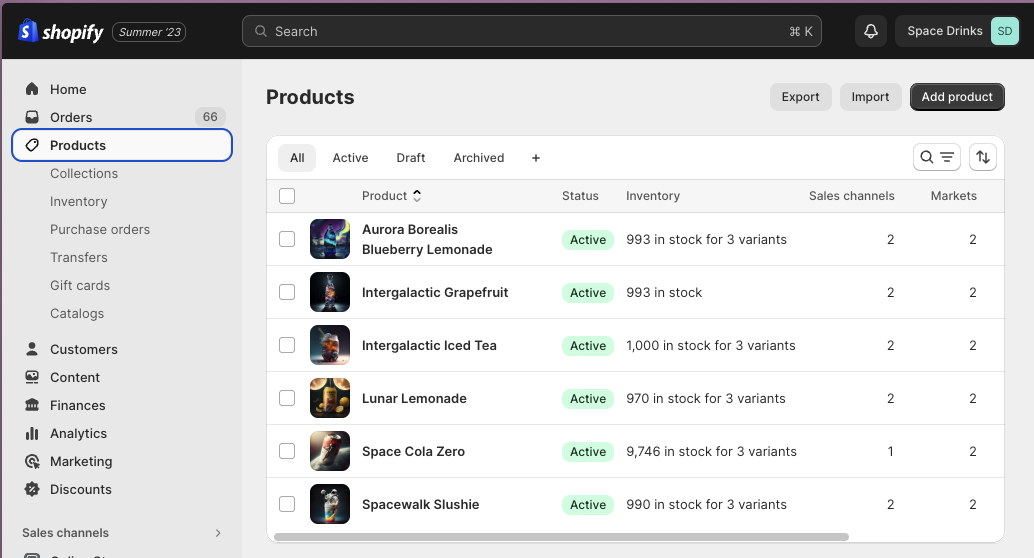
If you don’t already have one, you can create a store on Shopify by following clicking [here](https://accounts.shopify.com/store-create?language=en\&locale=en&_y=c2b36ea1-031e-49de-8ff3-8dba0f4f032f\&signup_page=https://www.shopify.com/blog/start-online-store\&signup_page_referer=https://www.google.com/\&signup_types%5B%5D=paid_trial_experience\&signup_types%5B%5D=acq_discounted_shopify_payment&_s=e035330b-f5b1-4c29-9aa2-324390cfff78&_p=b9deba72-CA89-44FB-CBB4-BDA1B507CC37). Shopify will take you through creating an account, creating a store, and then uploading products. Once your store is ready, you should be able to navigate to the Products tab and see your list of products. Your Shopify merchants will have a similar view of products. These are what get synched into Violet during onboarding
## Onboarding to Violet
{% hint style="warning" %}
When testing the merchant onboarding process in Sandbox, do not use an email address that you later plan on using for a developer type account. When signing up as a developer we must create accounts in both the Production and Sandbox environments. If you use the email address with a Sandbox merchant it will become reserved in Sandbox and we will not be able to complete the creation of your developer account if you try to use it for that purpose in the future.
{% endhint %}
1. Once your store is ready, you can navigate to your “Test Mode” Violet Connect URL available on [channel.violet.io](http://channel.violet.io), as seen below:
{% hint style="info" %}
In Test Mode, you cannot edit your Violet Connect URL
{% endhint %}

2. Navigate to your sandbox Violet Connect URL beginning with
3. Create an account on Violet Connect by entering an email address to associate with this merchant. (See warning above)
4. Click “Shopify”. This will take you through a Shopify specific onboarding flow.
5. Follow [this](https://merchant-help.violet.io/platform-guides/shopify) guide to create your Shopify credentials.
6. Complete Violet onboarding as described in [Violet Connect for Merchants](/prism/violet-connect/guides/violet-connect-for-merchants.md) to successfully sync your merchant.
7. Your connection is now complete! You should be able to see this merchant in your Channel Dashboard under the “Merchants” tab.

{% hint style="info" %}
Login at with the same email address used on Violet Connect to view the dashboard from the merchant's perspective.
{% endhint %}
---
# Agent Instructions
This documentation is published with GitBook. GitBook is the documentation platform designed so that both humans and AI agents can read, navigate, and reason over technical content effectively. Learn more at gitbook.com.
## Querying This Documentation
If you need additional information that is not directly available in this page, you can query the documentation by asking a question.
Perform an HTTP GET request on the following URL with the `ask` and `goal` query parameters:
```
GET https://docs.violet.io/prism/violet-connect/testing/connecting-a-shopify-store.md?ask=&goal=
```
`ask` is the immediate question: it should be specific, self-contained, and written in natural language.
`goal` is what the user is ultimately trying to achieve, the reason they need the answer. Sharing it helps GitBook give you a better, more relevant answer. A goal is most helpful when it describes the outcome the user wants rather than restating the question. For example, with `ask=how do I create an API token`, a goal like `automate deployments from our CI pipeline` lets GitBook tailor the answer to that use case.
The response will contain a direct answer to the question and relevant excerpts and sources from the documentation.
Use this mechanism when the answer is not explicitly present in the current page, you need clarification or additional context, or you want to retrieve related documentation sections.